
Losing hours of progress in a tycoon game feels terrible, which is why understanding whether Lumber Tycoon 2 autosaves is the first thing every new player should verify. The short answer is that the game does not rely on a traditional autosave system, so you need to manually manage your save slots through the Load menu. This guide breaks down exactly how saving works, why your land can disappear, and how to secure your progress before you leave a server.
How the Load Menu Actually Saves Your Land
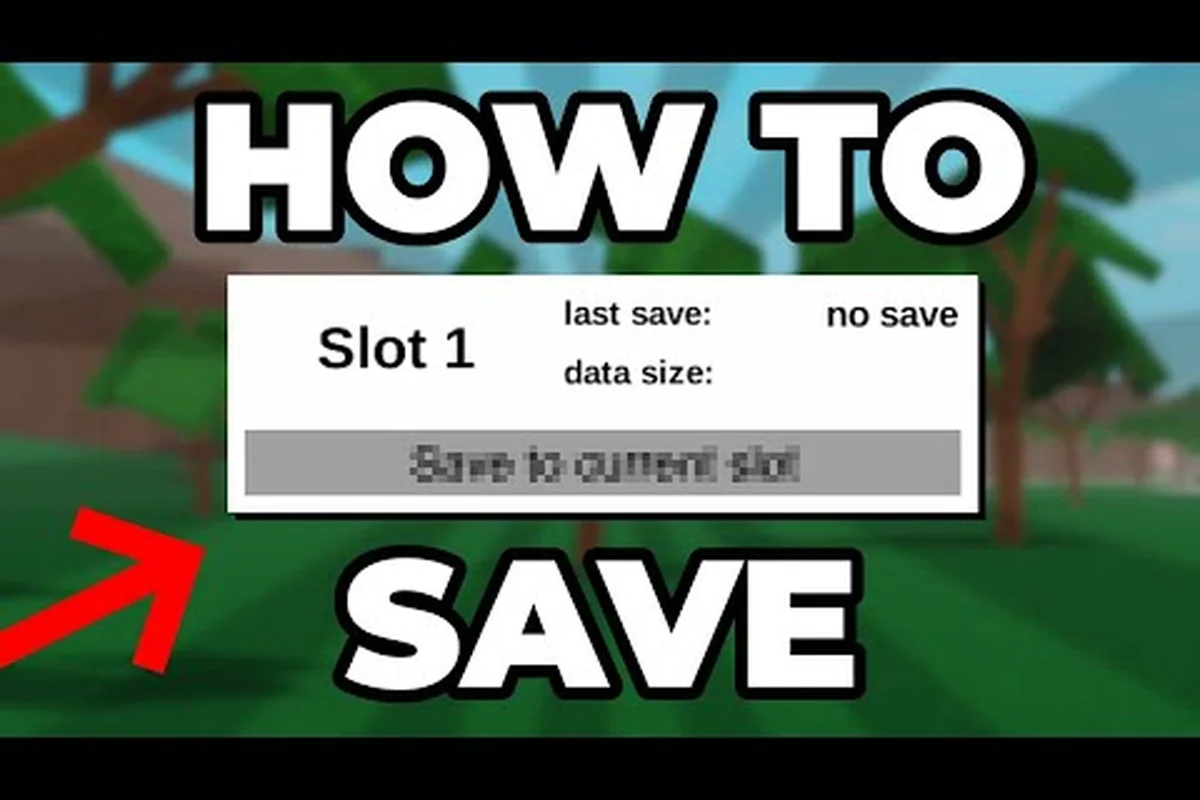
The core of progress security in Lumber Tycoon 2 sits inside the Load tab, which is located at the top-left corner of the Menu. When you open this tab, you will see six save slots, each displaying a number, the last saved timestamp, and the data size of that particular save. If a slot has never been used, it will show "no save" instead of a timestamp, which is a clear indicator that you need to create a fresh save before doing anything else.
The saving mechanic is entirely manual, which means the game does not automatically write your progress to a slot when you leave. You must actively select a slot and confirm the save action, because the game treats each slot as a separate snapshot of your land. This is why players who assume an autosave is running in the background often return to find their base reverted to an older state or completely empty.
| Save Slot State | What It Displays | What You Should Do |
|---|---|---|
| Empty slot | "no save" text | Create a new save immediately |
| Existing save | Timestamp + data size | Overwrite it after major progress |
| Corrupted slot | Error message on load | Switch to a different slot |
| Old save | Earlier timestamp | Load it only if current save fails |
The data size shown on each slot matters more than most players realize, because a slot with a very small data size often indicates that only a fraction of your structures and items were captured. Community reports suggest that large builds with many individual parts can push the data size high enough to occasionally trigger a packet request error, which is listed in the game's error documentation. When that happens, the save may fail silently, so you should always verify that the timestamp updated after you click save.
Does Lumber Tycoon 2 Save When You Leave?
The direct answer to this common question is no, Lumber Tycoon 2 does not save automatically when you leave a server. The game requires you to open the Menu, navigate to the Load tab, and manually save your land to one of the six available slots before you exit. If you disconnect without doing this, any progress made since your last manual save will be lost, because the server does not maintain a persistent live backup of your current session.
This behavior catches new players off guard, especially those coming from other Roblox tycoon games that do feature automatic saving. The confusion is understandable, because the game does not display a prominent warning when you attempt to leave without saving. You can test this yourself by placing a few planks, leaving without saving, and then rejoining to see that those planks are gone.
| Action Taken | Progress Saved? | Result on Rejoin |
|---|---|---|
| Manual save before leaving | Yes | All progress intact |
| Leave without saving | No | Progress since last save lost |
| Save to wrong slot | Partially | Old slot loads, new progress missing |
| Server crashes mid-session | No | Unsaved progress lost |
The Load menu is also where you restore your land when you join a new server, because your saved land does not automatically appear. You must manually load the slot that contains your most recent save, which is why keeping track of which slot you used last is critical. Players who save to multiple slots without noting which one is newest often load an older version of their base and think their progress vanished.
Why Lumber Tycoon 2 Not Saving Happens
One of the most frustrating experiences in the game is hitting save, seeing no error, and then discovering later that your progress did not actually persist. This issue, often described as Lumber Tycoon 2 not saving, can stem from several distinct causes that range from server instability to user error. Understanding these causes helps you avoid the panic of thinking your entire base is gone when the fix might be simple.
The first and most common cause is simply forgetting to save, because the game provides no visual reminder or autosave fallback. The second cause is saving to a slot that already contains an older save, which overwrites the previous data but may fail if the new data is too large. The third cause is a packet request error, which occurs when a player makes too many requests for data in a limited amount of time, as documented in the community wiki's error list.
| Cause of Save Failure | How to Identify It | Recommended Fix |
|---|---|---|
| Forgot to save | No timestamp update | Save manually before leaving |
| Overwrote wrong slot | Wrong base loads | Label slots mentally or use notes |
| Packet request error | Error message appears | Wait, then save again |
| Server instability | Save button unresponsive | Switch to a new server |
| Data size too large | Save takes very long | Remove unnecessary items |
Another subtle cause involves the server itself, because older servers that have been running for a long time can become unstable and fail to process save requests properly. Community testing indicates that switching to a fresh server before making a major save reduces the likelihood of a failed write. If you notice that the save button does not respond or the timestamp does not change after clicking, treat that as a warning sign and try again before leaving.
How to Get Land and Buy Land That Persists
Before you can save meaningful progress, you need to understand how to get land in Lumber Tycoon 2, because your save slots are tied to the land plots you own. New players start with a small plot, but expanding your territory requires purchasing additional land through the in-game interface. The process is straightforward once you know where to look, but the game does not hold your hand through the purchase flow.
To buy land, you need to interact with the land expansion signs that are located at the edges of your current property. These signs display the cost of the adjacent plot, and clicking them opens a purchase confirmation. Once you buy the land, it becomes part of your save data, which means you must save again to lock in the purchase. If you buy land and leave without saving, the purchase will not persist, and you will need to buy it again.
| Land Purchase Step | What Happens | Save Required? |
|---|---|---|
| Find expansion sign | Displays adjacent plot cost | No |
| Click sign | Opens purchase confirmation | No |
| Confirm purchase | Land expands, money deducted | Yes, immediately |
| Leave without saving | Purchase lost | N/A |
The cost of land increases as you expand further from your starting point, which is why many players focus on efficient money-making strategies before investing in large plots. The beginner guide to starting out covers the fastest ways to earn money in your first hour, which directly feeds into your ability to buy land quickly. Once you own multiple plots, your save data size grows, so keeping your builds organized helps prevent save failures.
Building a Save Routine That Protects Your Progress
The most reliable way to avoid losing progress is to build a consistent save routine that you follow every single time you play. This routine should include saving before you leave, saving after major purchases, and saving after completing significant building projects. Players who treat saving as an afterthought are the ones who most frequently report lost progress and vanished bases.
A practical routine starts with saving immediately after you load your land, because this creates a fresh baseline that reflects your current state. Then, save again after every major transaction, such as buying land, purchasing expensive vehicles, or placing rare items. Finally, save one last time before you leave the server, and verify that the timestamp on your chosen slot has updated to the current time.
| Save Routine Step | When to Do It | Why It Matters |
|---|---|---|
| Baseline save | After loading land | Locks in current state |
| Transaction save | After buying land or items | Prevents purchase loss |
| Build save | After major construction | Captures new structures |
| Exit save | Before leaving server | Final safety net |
| Verification | After every save | Confirms timestamp updated |
This routine becomes even more important when you are working with valuable items or large builds, because the cost of losing those assets is much higher. If you are trading for rare axes or other high-value items, you should save immediately after the trade completes, because trades are not automatically recorded. The rare axe trading guide explains how to avoid scams, but even legitimate trades need a manual save to persist.
Frequently Asked Questions
Does Lumber Tycoon 2 autosave my progress?
No, Lumber Tycoon 2 does not autosave. You must open the Menu, go to the Load tab, and manually save your land to one of six slots. If you leave without saving, all progress since your last manual save is lost.
How do I know if my save worked?
After clicking save, check the timestamp on your chosen slot in the Load tab — it should update to the current time and the data size should shift to reflect your latest builds, vehicles, and purchased plots. If the timestamp and size remain frozen, the save did not register, which can happen during server lag or when the game fails to communicate with the data store. In that case, re-enter the Menu, save again, or switch to a less crowded server before retrying.
Why did my land disappear after I rejoined?
Your land likely disappeared because you loaded an empty or older save slot. When you join a new server, the game does not auto-load your most recent save — you must open the Menu, go to the Load tab, and manually select the correct slot before your base appears. Loading the wrong slot shows an older or empty version of your base, which is especially common if you have multiple slots with similar timestamps. Always verify the slot's timestamp matches your last manual save before rejoining.
Can I recover progress that was not saved?
No, unsaved progress cannot be recovered. The game does not keep a server-side backup of your session, and Defaultio has no rollback tool or support channel for restoring lost builds, vehicles, or purchased plots. Once the server shuts down or you disconnect, any uncommitted changes to your land are discarded permanently. This is why saving frequently — ideally after every major build, vehicle modification, or plot purchase — and verifying timestamps in the Load tab is the only reliable protection against lost progress.
Does buying land save automatically?
No, buying land does not trigger an automatic save. After purchasing a new plot — whether it's the $1,000 Small Land, the $3,000 Medium Land, or the $8,000 Large Land from Wood R Us — you must open the Menu, go to the Load tab, and manually save to one of six slots to lock in the purchase. Leaving without saving means the transaction exists only in that server session, and rejoining will revert your plot count to whatever your last manual save recorded, forcing you to buy the land again.